Connect your AI to Bill & Ben
What this is: how to use the AI app you already have (ChatGPT, Claude, Microsoft Copilot and others) as a remote control for Bill & Ben. Who it is for: staff of a company that has the AI gateway in its plan. You will learn: which app to pick, how to connect it, what it can do, and what to do when it fails.
The heavy work runs on our side: Bill and Ben, your device, company knowledge and Helmora. Your AI app only passes your words along and shows the answer.
Server address: https://ai.<brand>/mcp, where <brand> is your company's domain. Your admin can tell you the exact address.
Which app should I use?
| Your app | Page | Who can add it |
|---|---|---|
| ChatGPT (web) | ChatGPT | Business and Enterprise: admins and owners. Other plans: check the page |
| Claude (web, Desktop, mobile) | Claude | Free, Pro, Max, Team, Enterprise. On Team and Enterprise, an owner adds it first |
| Claude Code (terminal) | Claude Code | Anyone who can run the command |
| Microsoft 365 Copilot | Microsoft Copilot | Your IT team builds an agent. Not a one-click connection |
| GitHub Copilot in VS Code | GitHub Copilot | Anyone, unless your organisation blocks MCP servers |
| Cursor, Codex, Gemini and others | Other apps | Depends on the app |
If your app is not listed, use a personal access token.
Before you start
- Your admin must give you the permission
gateway.connect, andgateway.tool.<name>for each tool you may use. The Member, Developer and Ops roles have both. See permissions. Without it, sign-in ends on a page that says Not on your organisation's list. - Your plan must include the gateway. Without it, requests are refused.
- You sign in with your company account. Your AI app never sees your password.
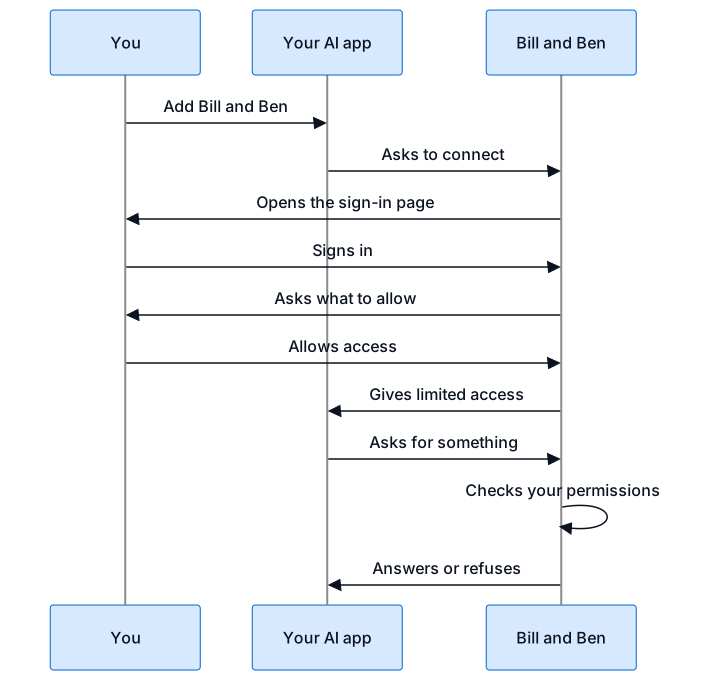
What happens when you connect
- You give the app the server address.
- The app opens a sign-in page in your browser. You sign in with your company account.
- Bill & Ben asks: "
wants to use Bill & Ben as you". You choose Allow or Don't allow. The page says "This application is unverified" for apps we have not listed. Read the app name before you allow. - The app can now use the tools below. The sign-in lasts one hour and renews itself for 30 days. After that you sign in again.
What you can do once connected
Say what you want in your own words. The app picks the tool.
| Tool | What it does |
|---|---|
bb_ask |
Ask Bill or Ben a question and get one answer |
bb_delegate |
Hand over longer work. Returns a task and a Helmora link |
bb_task_status, bb_task_list |
See how a task is going, or list your tasks |
bb_task_reply |
Answer a question a task asked you. It cannot approve anything |
bb_task_cancel |
Stop a task |
bb_targets |
List where work can run (for example your device) |
bb_whoami |
Show who you are, your limits and your detail mode |
bb_plan_start |
Start a plan on a Helmora board |
bb_canvas_list, bb_canvas_read, bb_canvas_note |
List boards, read one, add a note |
bb_knowledge_search |
Search company knowledge you may see |
Examples you can copy:
- "Ask Ben: what is the status of bug 123?"
- "Delegate to Ben: fix the failing login test, on my machine." Your device shows an approval prompt.
- "Start a plan on Helmora for the Q1 pricing page."
- "What is my quota?"
Your app shows a Helmora link. Open it for the full result. Anything that changes something (work items, code, messages) still needs your approval in Teams, on Helmora or on your device. Your AI app cannot approve for you.
Seeing boards in ChatGPT or Copilot
Coming soon: apps that support MCP Apps (ChatGPT, Microsoft 365 Copilot and others) can show a read-only card for one of your boards, documents or plans inside the chat. Ask "show me my launch plan" or "show the Q4 notes document". The card has an Open in Helmora button for editing. It only shows what you can already see in Helmora, it cannot change anything, and some apps show only a title and the link. If your app does not draw cards, the answer still includes the link.
What data leaves our side
- Summary mode (default). Your app gets short summaries, statuses and links. It does not get documents, transcripts or code. Text is cut at 2,000 characters. The full result stays on Helmora after you sign in.
- Full detail needs the permission
gateway.detail.full, which the Business plan includes.bb_whoamishows which mode you are in. - The company behind your AI app sees every tool result. On a personal plan, your company has no data agreement with that vendor. Turn off "use my chats for training" in your own app.
- We record who called which tool and a fingerprint of the request. We do not store your words.
Limits
Defaults per person: 30 calls a minute, 60 questions a day, 20 delegated tasks a day, 3 long tasks a day, 2 tasks running at once. Your plan can change these. Days follow UTC. If your company has used its monthly AI budget, delegated and long tasks pause while short questions still work. Ask "what is my quota?" to see yours.
Personal access token
Some apps cannot sign in through a browser. They can use a personal access token instead.
- Open
https://ai.<brand>/tokensand sign in. - Choose Create token, give it a Name, and copy it. It starts with
bbg_and is shown once. - A token lasts 90 days. You can have 10 at a time.
- To stop a token working, open the same page and choose Revoke.
Keep tokens in a password manager. Never paste one into a chat.
Apps without MCP: the OpenAI-compatible address
If your app lets you set a custom OpenAI base URL (Open WebUI, LibreChat, Continue), use https://ai.<brand>/v1, a personal access token as the key, and the model bill or ben. Only these two models exist, and only personal tokens work there. Each message becomes one bb_ask call under the same permissions and limits.
Common problems
| You see | What it means | What to do |
|---|---|---|
| Not on your organisation's list | Your account cannot connect AI apps yet | Ask your admin to add you, then connect again |
| "your organisation has not given you gateway access" | You lack gateway.connect |
Ask your admin |
| "you do not have access to bb_delegate" (any tool name) | You lack that tool's permission | Ask your admin |
| "Your workspace has no active plan, so Bill & Ben can't take requests yet." | The plan has lapsed or does not include the gateway | Tell your admin |
| "You have used all N ... your plan allows. Try again in about ..." | A daily limit | Wait, or ask your admin about your plan |
| "You already have N jobs running, which is what your plan allows. Wait for one to finish or stop one." | Too many tasks at once | Wait or cancel one |
| "Your workspace has used its monthly AI budget ... Short answers still work." | Budget reached | Ask an admin to raise it |
| "Bill is busy right now. Try again in about N min." | Short overload | Try again |
| "can't check permissions right now" | A temporary fault on our side | Try again in a minute |
Each app also has its own errors. They are on the app's page.
Disconnect
Remove the connection in your AI app (each page shows how). To cut access at once, ask your admin to remove your gateway.connect permission. Personal access tokens stop working when you revoke them on the tokens page.
If something is wrong
Message Bill in Teams: "gateway problem: