Teams chat
What this is: how to talk to Bill or Ben in a Teams chat, and what happens to your message. Who it is for: staff who chat with the agents, and admins who set up access. You will learn: who may talk to an agent, what a refusal looks like, how approvals work, and the route a message takes.
Use it
- Open a direct chat with Bill (product and commercial work) or Ben (engineering work), or
@mentionone of them in a channel. - Write what you want in plain words. A typing indicator shows while the agent works. Long answers are split into several messages.
- The first time you write in a chat, the agent says it is an AI assistant (EU AI Act, Article 50). The notice appears once per person per chat.
- If the agent wants to change something (create, push, send), it asks first. See Approvals.
Who may talk to an agent
Your admin decides, with permissions, never with a list of names. You need agent.ask (questions, read-only tools) or agent.command
(tasks and write tools) on that agent in that chat. See Permissions and Access check.
Your Microsoft account must also be linked to your platform user. The link is made from your account, never from your name or email.
What you see when you are refused
| Situation | What the agent says |
|---|---|
| Your account is not linked yet | "I don't know your account yet. Sign in to link it:" plus a link |
| You are not allowed | "I can only take requests from people your admin has allowed." once per day per chat, then silence |
| The agent is not enabled in this chat | "I'm not enabled in this chat. Ask your admin to enable me here." once per chat |
| The permission check is unavailable | "I can't confirm what you are allowed to ask me right now, so I did not start. Please try again shortly." |
| Your company's spend cap is reached | "Spend cap reached, ask your admin." |
| The agent needs a moment to start | "One moment, waking up..." after one second |
An admin can choose per agent whether a refused person gets one reply a day, a reply every time, or no reply. Direct chats work out of the box for the first company. Group chats and channels need an admin to enable the agent first.
Approvals
When the agent wants to make a change and your permissions say it needs your confirmation, it stops and a card with Approve and Deny buttons arrives in your direct chat with that agent, not in the group chat. Tell the agent to repeat the request after you press Approve.
- The approval covers one action and exactly its details, and works once.
- It expires after 10 minutes. A later click answers "That request has expired or was already answered."
- The person who clicks must hold the same permission. You can always deny your own request.
- If the card cannot be delivered (you have no Teams identity on file), the change stays blocked.
Bill and Ben
| Bill | Ben | |
|---|---|---|
| Works on | product briefs, design review, meeting summaries, work-item proposals | code, pull requests, sandbox tasks |
Either agent can ask the other for help.
How it works
In short: a message is checked, answered, and risky changes wait for your approval.
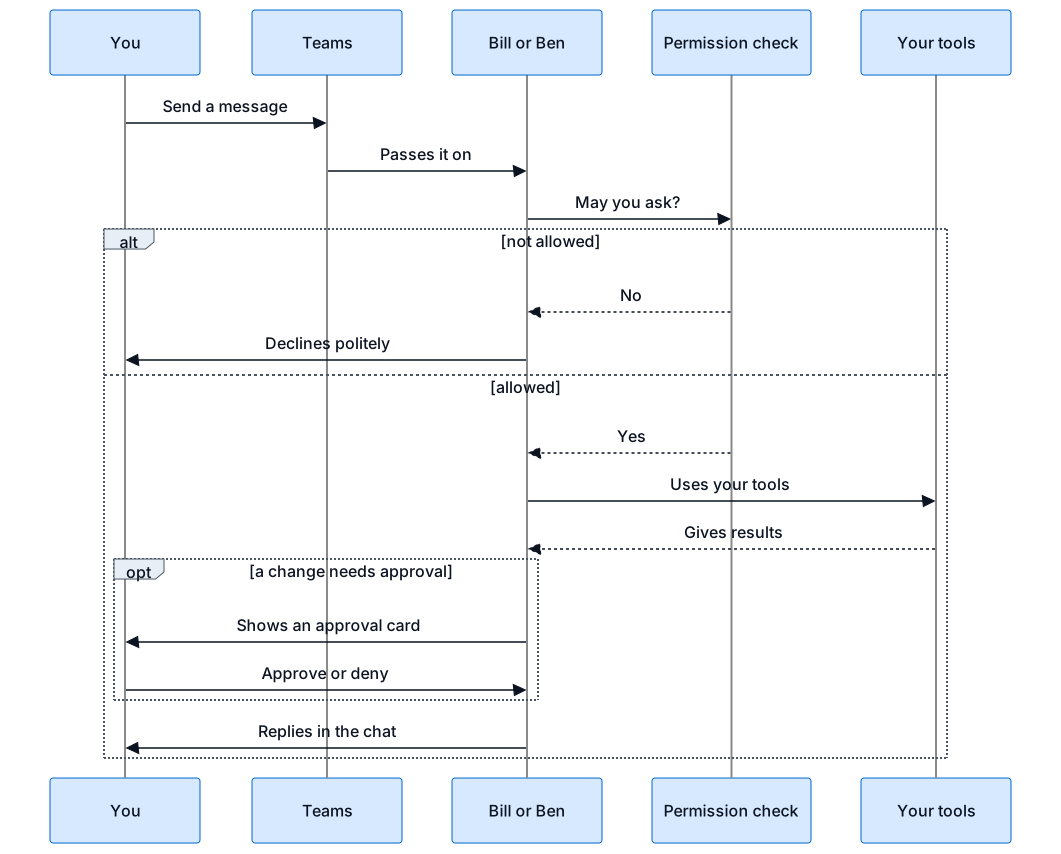
Your message reaches the agent only after Bill or Ben has recognised you and checked that you are allowed to ask. The agent then works, and its answer comes back in the same conversation, split into parts if it is long. If the agent needs your approval for a change, the card arrives in your direct chat. When an admin adds the agent to a group, nothing is enabled until the admin enables it, and a recognised installer gets a greeting.