Meeting tasks
What this is: how a spoken request in a meeting ("Ben, go and fix X") becomes a background task with a result you can read. Who it is for: staff who ask for work in a call. You will learn: what to say, who may ask, how many tasks run, where the result lands, and what a task may do.
Use it
- Address the agent as usual and say what you want done: "Ben, fix the typo on the pricing page." Plain questions are answered aloud; long or changing work becomes a task. The agent decides, not you.
- The bot says and chats "On it:
. I'll post the result here." The meeting carries on; the task does not block new questions. - When it finishes, the result appears in the meeting chat while the bot is still in the call. After the call it goes to you in a Teams 1:1 chat, and if that fails to the agent's home channel with your name on it. Results go to the meeting chat even when guests are present.
- A task stops after 30 minutes: "That took too long; I've stopped. Ask me in Teams chat to continue."
- If two tasks are already running: "I've got two jobs running, ask me again shortly."
Who may ask, and what a task may do
You must be recognised and allowed to speak to the agent (Meeting). A task then runs with your permissions, and every step it takes is checked against them. A speaker who was recognised only by display name gets denials for anything that changes data. Read-only work runs directly. Code goes on a new branch and ends as a draft pull request. No work items are created; the agent proposes them. If you name a machine of your own, the task is placed on it when your devices allow it (Device runner); the machine name is taken only from your own words. A refused machine, a refused permission or an offline device is explained in the meeting and, where possible, in your Teams 1:1.
How it works
In short: a spoken request starts background work and the result lands in Teams.
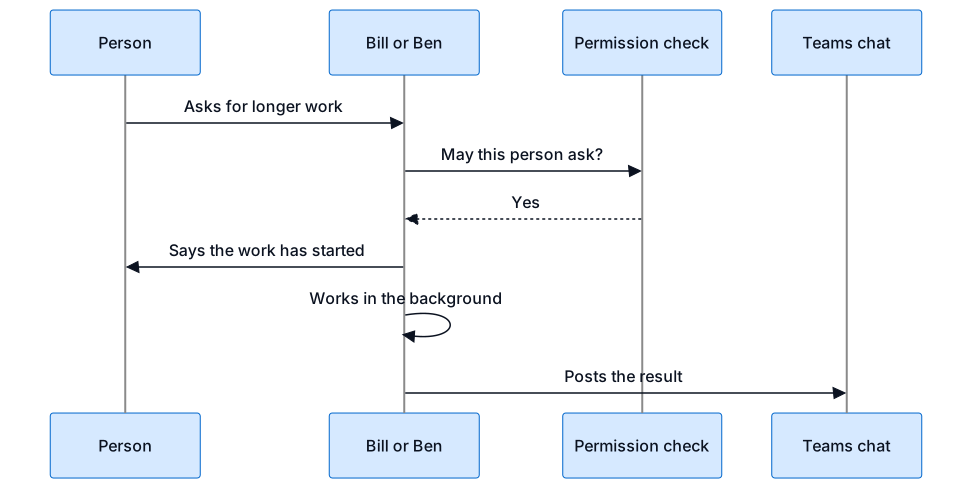
A spoken request that needs real work is restated, queued and run in the background under your permissions. Up to two tasks run at once, each for up to 30 minutes. The result is delivered to the meeting chat while the bot is in the call, then to your Teams 1:1, then to the agent's home channel. Tasks running when the platform restarts are not resumed.